To prepare a high-quality print artwork, it is necessary to follow a few key principles.
Bleed and Safe Zone
Bleed refers to the area added to the final dimensions of the graphic design. It involves adding 2.5 mm of graphics to each side.
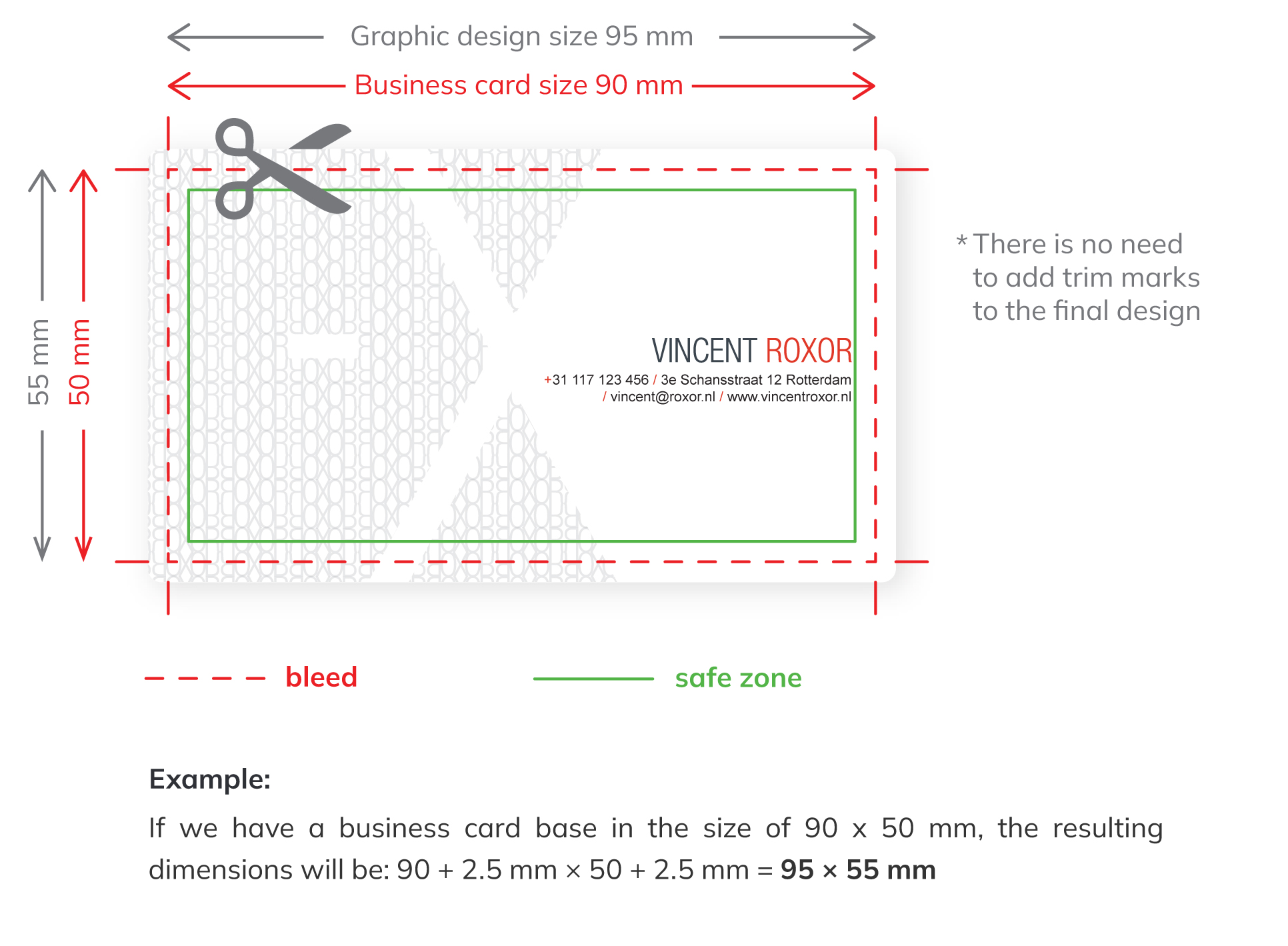
The safe zone represents the margin area of the graphic design (business card, poster, flyer, etc.) where no images, text, or other elements should be placed if you do not want them to be cut off. The safe zone for business cards is 2.5 mm. For other products, it may vary. If you want to check whether your graphics have sufficient overlap (bleed), please write to us at info@expresta.eu.
Avoid Borders
For small graphic designs, such as business cards and A6 documents, it is important to avoid visuals that could cause production issues. This applies particularly to borders/frames along the edges. Since the material passes through multiple machines during production, and each machine has its own margin of error, designs with borders near the edge can look misaligned and lose their aesthetic appeal. Therefore, it is better to avoid graphics with borders altogether.
Correct Resolution

72 dpi – standard screen resolution | 300 dpi – resolution for high-quality printing
A resolution of 72 dpi is not sufficient for high-quality printing. Printers operate at resolutions ranging from 300 dpi up to 1200 dpi. The lowest acceptable resolution for quality printing is 300 dpi.
CMYK Color Mode
The RGB color mode has a wider spectrum of colors that can be displayed. It is crucial that the graphic design is prepared in the CMYK color mode. Otherwise, it could happen that a color visible on the monitor cannot be reproduced by the printer.
Text Form and Size
It is important that text is not smaller than 8 pt. Fonts smaller than 8 pt are illegible from a natural distance, and print imperfections become noticeable from a closer view.
Before saving the final design, text must be converted to curves/outlines using Adobe Acrobat Pro features (Advanced -> Print Production -> Flattener preview -> All text to outlines). Functions that convert text to outlines are also part of Adobe Illustrator (Type -> Create Outlines).
Saving the Design
The design must be saved in PDF format. The PDF must be saved without embedding additional color profiles.
You can also find the above-mentioned specifications for a correct document described in the file provided below. It also includes pre-prepared templates of standard sizes with bleed and safe zones. https://cdn.expresta.com/eu/files/how_to_prepare_a_document_for_printing_eu.pdf
a document for printing


