What is a cutline?
Cutline is the term used for a cutting line that guides a plotter or laser to cut stickers or other paper products into the desired shape. This can include standard shapes like a square, circle, or ellipse, as well as atypical shapes such as a star, a simple tree outline, etc.
How to prepare a cutline?
In the document, the cutline is represented by a path that contains spot color information. The plotter recognizes the specific name of this color and uses this data to identify it as the cutting line.
To begin, you need to design the path that the machine will follow to cut. Prepare this path on a separate layer. Once drawn, set its stroke weight to 0.1 mm (or 0.25 pt).

The next step is setting up a spot color. This color must be named exactly CutContour and must consist of 100% Magenta only. To create a spot color with this name in Adobe Illustrator, open the Swatches panel via Window > Swatches.
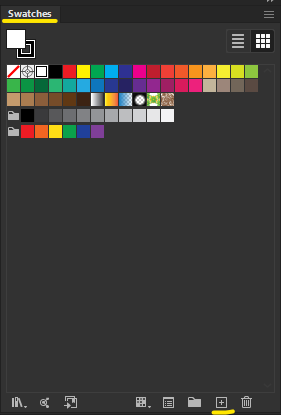
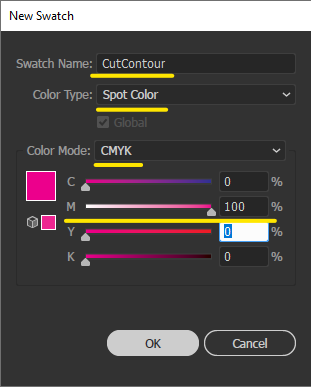
At the bottom of this panel, click the plus icon inside a square to open the New Swatch dialog box. Enter the following values here:
Swatch Name: CutContour
ColorType: Spot Color
Color Mode: CMYK
C: 0%, M: 100%, Y: 0%, K: 0%
After entering all the necessary values, click OK.
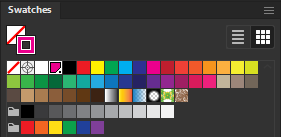
A new color will be added to your Swatches panel. If everything was done correctly, it will display a white triangle with a black dot in its bottom right corner. Apply this color to your created outline, turning the outline magenta.
It is necessary to apply the overprint attribute to this stroke. You can find this setting in the Attributes panel:
Window > Attributes (keyboard shortcut  + F11 (Windows) or
  + F11 (macOS)).
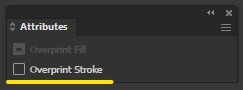
Select your path, and your Attributes panel should match the settings described. Check the box for Overprint Stroke, and you are done.


